MOM blog updated November 2026. Originally published February 2026.
What to do before your copier stops sending?
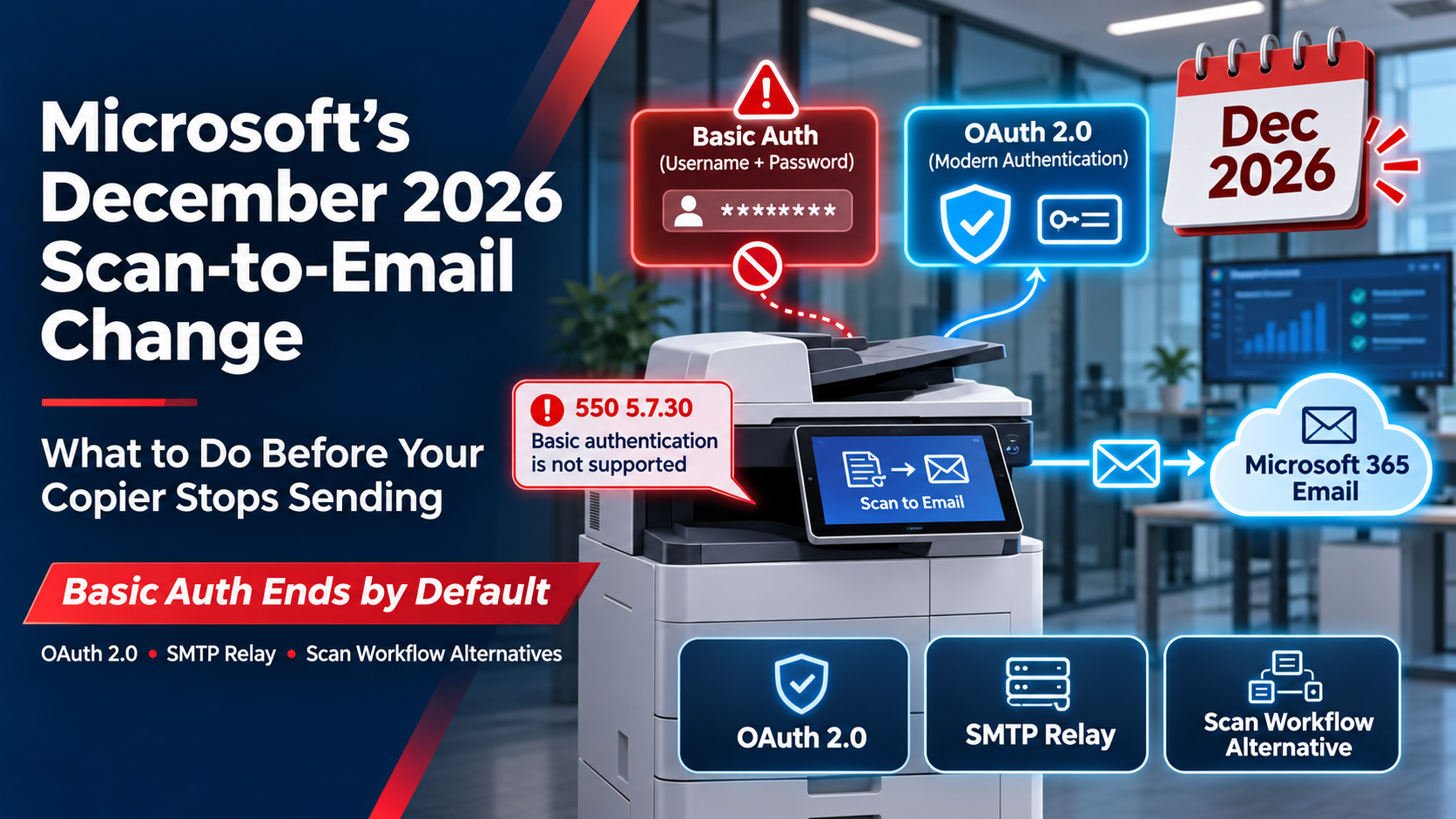
The short answer: At the end of December 2026, Microsoft will turn off Basic Authentication for SMTP AUTH by default in Microsoft 365. If your copier or MFP scans to email with a saved username and password, scan-to-email may stop working. To keep it running, switch the device to OAuth 2.0, route it through a Microsoft 365 SMTP relay, or move to a scanning service that doesn’t use SMTP. Modern Office Methods can check your devices and tell you which option fits.
What’s Changing
For years, most copiers and MFPs have sent scanned documents through Microsoft 365 the same way: the device signs in to smtp.office365.com with a username and password saved on the device. That method is called Basic Authentication.
Microsoft is retiring it. The replacement is OAuth 2.0, also called Modern Authentication. Instead of keeping a password on the device, OAuth uses short-lived access tokens issued through Microsoft Entra ID (formerly Azure Active Directory). It’s more secure because there’s no saved password on the device to steal, and the tokens expire on their own.
Once Basic Authentication is off, any device still using it will be refused, and scans won’t arrive. Most offices find out when someone presses Send and nothing shows up.
Key Dates
| When | What happens |
| Now through December 2026 | No change. Basic Authentication still works. |
| End of December 2026 | Basic Authentication is disabled by default for existing Microsoft 365 tenants. Admins can turn it back on for now. |
| New tenants created after December 2026 | Basic Authentication is not available by default. |
| Second half of 2027 | Microsoft announces the final date it will be removed for good. |
Source: Microsoft’s updated SMTP AUTH deprecation timeline, revised January 27, 2026.
Who Is Affected
You’re likely affected if any of these send email through Microsoft 365 with a saved username and password:
- Scan-to-email on copiers and MFPs
- Device alerts, such as low-toner or service notices
- Line-of-business apps, scripts or servers that send automated email
- Anything configured to use smtp.office365.com on port 587 with a username and password

How to Check Your Devices in 5 Minutes
You don’t need to be an IT expert to find out where you stand. For each copier or MFP that scans to email:
- Open the device’s settings. Type its IP address into a web browser, or go to the network or email settings on the control panel.
- Find the SMTP or outgoing email server settings.
- If the server is smtp.office365.com and a username and password are saved, the device is using Basic Authentication. It will be affected.
- If the device says OAuth, Modern Authentication or “Sign in with Microsoft,” it’s likely ready. Send a test scan to confirm.
- If the server is something else, like a relay address or your own mail server, ask your email administrator or MSP how it’s set up.
If you manage Microsoft 365, the SMTP AUTH Clients Submission report in the Exchange admin center shows which devices and apps still sign in with Basic Authentication.
What Happens If You Do Nothing?
Scans and device alerts stop sending, and the device usually shows a vague “send failed” message. In your mail logs, you’ll see this error:
550 5.7.30 Basic authentication is not supported for Client Submission.
That usually means calls to the help desk the first week of January, right when offices are scanning year-end paperwork, W-2s and audit documents.
Your Three Options:
| Option | How it works | Best for | Things to know |
| 1. OAuth on the device | The MFP signs in to Microsoft 365 with a secure token instead of a password | Newer devices that support OAuth | Configured one device at a time. May need a firmware update and a Microsoft 365 admin to approve access. |
| 2. SMTP relay through Microsoft 365 | Devices send to Microsoft 365 through a connector that trusts your office’s public IP address, encrypted with TLS. No password is stored on the device. | Offices with many devices, or older devices that can’t do OAuth | One setup covers many devices. Usually needs a static public IP and an admin to create the connector. |
| 3. Subscription scanning alternative | Scans go straight to cloud storage or business apps without SMTP | Offices that want to retire scan-to-email entirely | Ongoing subscription cost. Can also add workflow features, like scanning to folders or apps. |
Many offices end up with a mix: OAuth on newer devices and a relay for older ones.
“Can’t We Just Turn Basic Authentication Back On?”
For now, yes. After December, Microsoft 365 admins can turn Basic Authentication back on for their tenant. But that only buys time. Microsoft plans to announce a final removal date in the second half of 2027, and when that date arrives, there’s no switch to flip. Turning it back on also leaves a saved password on every device, which is the security risk Microsoft is trying to remove.
Use it as a short bridge while you fix devices, not as the plan.
Canon, HP and Ricoh: What to Know
- Canon: Compatible imageRUNNER ADVANCE and imageFORCE models support OAuth 2.0 for Microsoft 365 as part of SMTP setup. Older models may need a firmware update or a relay.
- HP: HP publishes instructions for scan-to-email with Microsoft 365 using OAuth 2.0. Support depends on the model and firmware. Devices that can’t support it can use a relay.
- Ricoh: Ricoh says OAuth 2.0 will be required for SMTP email with Microsoft 365 and is releasing firmware by model. Models that can’t be updated need a relay or another alternative.
Not sure what you have? Your device model and firmware version are on the configuration page, and MOM can look them up for you.
Your December Checklist
- ☐ List every device and app that sends email through Microsoft 365
- ☐ Check each one’s email settings, using the 5-minute check above
- ☐ Ask your email administrator or MSP whether SMTP AUTH and Basic Authentication are turned on in your tenant
- ☐ Pick a path for each device: OAuth, SMTP relay or a subscription alternative
- ☐ Schedule firmware updates and setup changes before the holidays
- ☐ Send a test scan from every device after each change
- ☐ Plan replacements for devices that can’t support any of the options
Frequently Asked Questions
Will my copier stop scanning to email in January? It might. If your copier sends through Microsoft 365 with a saved username and password, scan-to-email can stop working once Microsoft turns off Basic Authentication by default at the end of December 2026.
What is OAuth 2.0 for scan-to-email? OAuth 2.0 is Microsoft’s modern sign-in method. Instead of storing a password, the copier uses a short-lived security token from Microsoft Entra ID to send email through Microsoft 365.
Does my Canon, HP or Ricoh support OAuth? Many current models do, and some need a firmware update first. Support depends on the model and firmware version. Devices that can’t support OAuth can usually use an SMTP relay instead.
What is an SMTP relay? An SMTP relay lets devices send email through Microsoft 365 without a password on the device. Microsoft 365 trusts mail from your office’s public IP address through a connector your admin sets up.
Can we turn Basic Authentication back on? Yes, for now. Admins can turn it back on after December 2026, but Microsoft will announce a final removal date in the second half of 2027. Treat it as a short-term bridge.
Does this affect Gmail or other email providers? This change is specific to Microsoft 365 and Exchange Online. Other providers have their own rules, and Google already requires modern sign-in for most third-party access.
What error will I see if scan-to-email fails? Mail logs show “550 5.7.30 Basic authentication is not supported for Client Submission.” The copier itself usually just shows a send failure.
How Modern Office Methods Can Help
You don’t have to sort this out alone. For Modern Office Methods clients, we’ll run a free scan-to-email check. We’ll review each device’s model, firmware and email settings, tell you which path fits, and handle the firmware updates and setup.
Working with an MSP or internal IT team? We’ll work with them directly. And if you’re an Optimized IT managed services client, our team can set up the Microsoft 365 side too, from the relay connector to admin approvals.
Request your free scan-to-email check or contact your MOM sales representative. Not a client yet? Visit our Free Assessments page to see where your office stands.